Game-specific input labs

Start with the game. Reach the right test.

Each hub connects a real player question to a scoped calculator, live diagnostic or decision workflow. No reskinned toy tools and no invented “best settings.”

01
Tactical FPS

VALORANT

A test-first VALORANT setup hub for mouse distance, browser-observed DPI, clean keybinds and controller hardware checks.

PC · PlayStation · Xbox
02
Tactical FPS

Counter-Strike 2

Measure CS2 aim distance, event consistency and key combinations without turning one professional profile into a universal recommendation.

PC
03
Sandbox / survival

Minecraft

A Minecraft utility hub for Nether portal coordinates, keybind conflicts, mouse checks, controller testing and mobile touch diagnostics.

PC · PlayStation · Xbox · Switch · iOS · Android
04
User-created experiences

Roblox

A platform-aware Roblox input hub that avoids pretending every experience shares one sensitivity or control model.

PC · PlayStation · Xbox · iOS · Android
05
Battle royale / creator ecosystem

Fortnite

A Fortnite control lab for controller range, deadzone, mouse delivery, keybind conflicts and platform-aware input checks.

PC · PlayStation · Xbox · Switch · iOS · Android
06
Vehicle sports

Rocket League

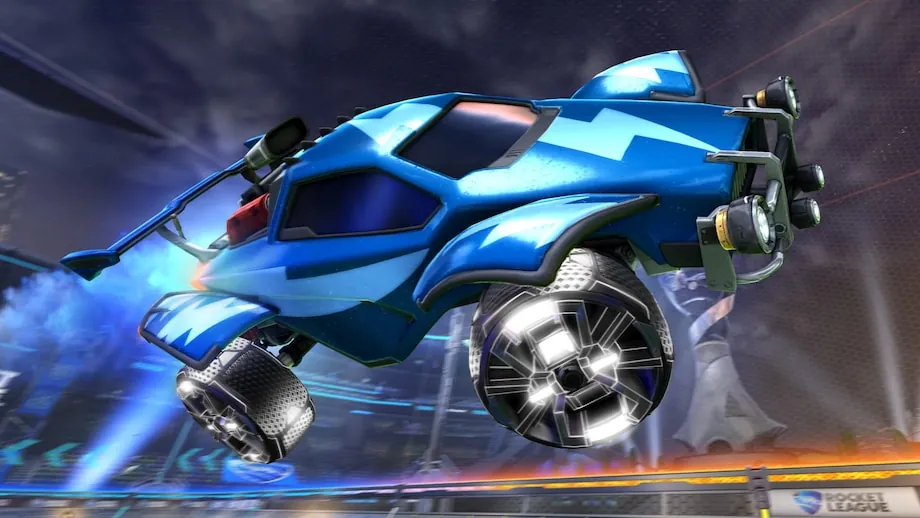
Controller-first Rocket League diagnostics for recenter stability, outer range, trigger travel and practical deadzone tuning.

PC · PlayStation · Xbox · Switch
07
Battle royale FPS

Call of Duty: Warzone

A Warzone input workflow for controller health, mouse event stability, keybind conflicts and version-aware settings notes.

PC · PlayStation · Xbox
08
Hero battle royale FPS

Apex Legends

Apex Legends input diagnostics for hip-fire transfer, controller range and settings records that keep advanced look controls separate.

PC · PlayStation · Xbox · Switch
09
Tactical FPS

Rainbow Six Siege

A Rainbow Six Siege control hub focused on per-context keybinds, controller evidence and avoiding unsupported scope conversions.

PC · PlayStation · Xbox
10
Hero shooter

Marvel Rivals

A Marvel Rivals input baseline for hero-specific binding contexts, mouse repeatability and controller recenter behavior.

PC · PlayStation · Xbox
11
Open-world action

Grand Theft Auto VI

A pre-launch GTA VI input-readiness page limited to hardware checks, official platform information and a clearly dated launch record.

PlayStation · Xbox
12
Battle royale

PUBG: Battlegrounds

PUBG input diagnostics for mouse consistency, dense keybind maps and separate controller checks.

PC · PlayStation · Xbox
13
Mobile FPS

Call of Duty: Mobile

A mobile-first CODM workspace for touch reach, simultaneous contact checks, gyro availability and HUD planning evidence.

iOS · Android
14
Mobile battle royale

Free Fire

A Free Fire mobile input hub for HUD reach, multi-touch combinations, edge loss and browser-visible motion signals.

iOS · Android
15
Hero shooter

Overwatch 2

An Overwatch 2 input hub for supported hip-fire transfer, hero-specific binding contexts, mouse repeatability and controller baselines.

PC · PlayStation · Xbox · Switch
16
MOBA

League of Legends

A League of Legends keyboard and mouse workflow for ability conflicts, event delivery, unintended clicks and repeatable troubleshooting.

PC
17
MOBA / Steam

Dota 2

A Dota 2 input map for ability, item, control-group and camera bindings plus mouse and keyboard fault isolation.

PC
18
Sports

EA Sports FC

A controller-first EA Sports FC diagnostics hub for stick center, full range, triggers, buttons and connection comparisons.

PC · PlayStation · Xbox · Switch
19
Action RPG

Genshin Impact

A cross-platform Genshin Impact input hub for controller checks, keyboard maps and real-device mobile touch reach.

PC · PlayStation · Xbox · iOS · Android

Why game pages do not all contain a converter

A useful game tool needs a model that can be explained and tested. Mouse hip-fire conversion is available only where the horizontal angular constant is versioned. Controller response curves, scoped multipliers and aim-assist behavior are not interchangeable units, so Keymap routes those questions to hardware baselines and in-game validation instead of manufacturing a precise-looking answer.
How to use a game hub

  1. Choose the exact game and platform.

  2. Record the current input method, settings and build context.
  3. Run the first linked lab without changing the setup.
  4. Change one variable and repeat the same action.
  5. Save a local profile or exportable report when the result becomes repeatable.